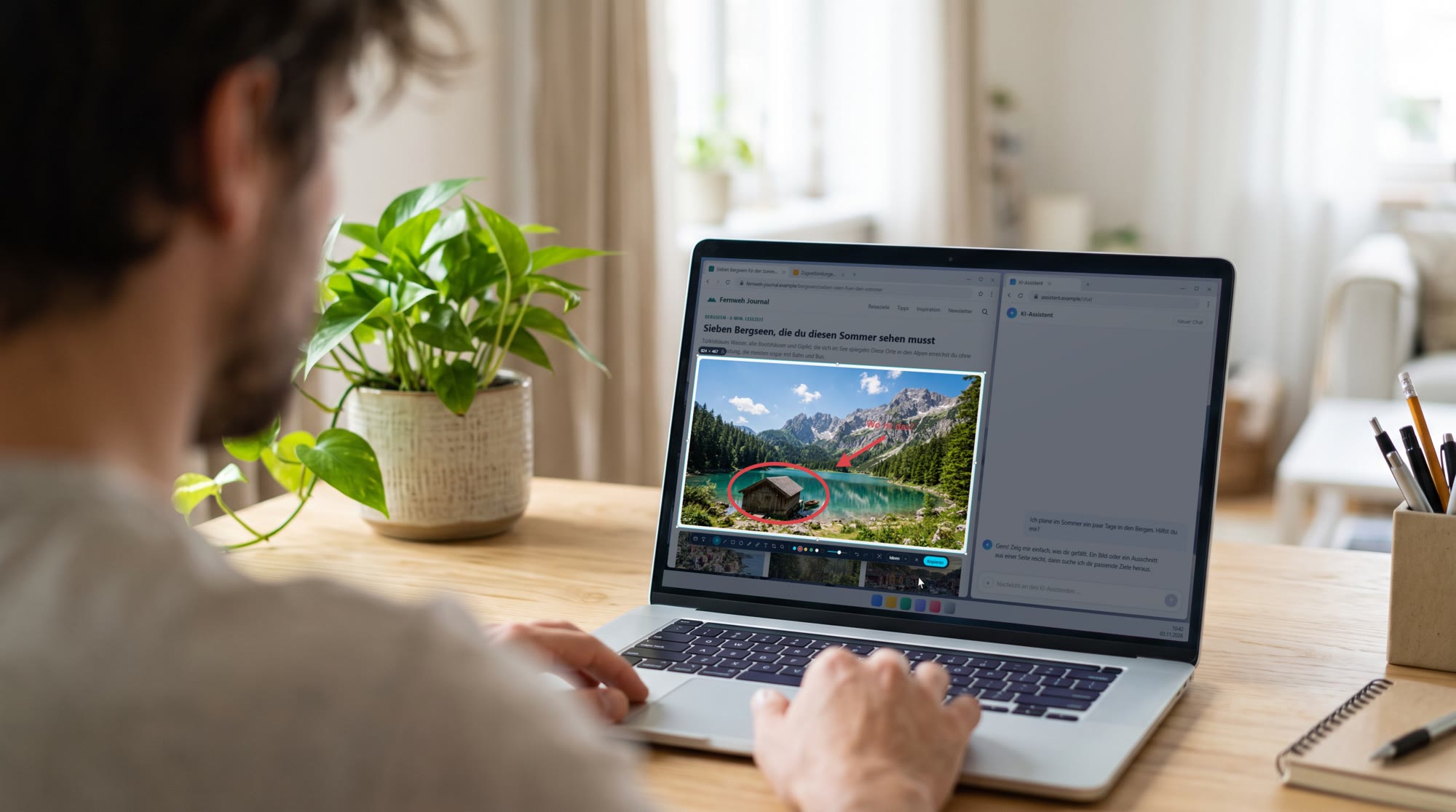
Circle too small? Just change it.
Grab and move any drawing, pull the handles to make it bigger, duplicate it with Ctrl + D and change its colour. The picture is only finished when you press Enter.
Screenshot 42 is the screenshot program for Windows and Mac. Press Print Screen, drag a frame over the picture, circle what you mean, Enter. Paste it into the chat with Ctrl + V, done. The answer to every screenshot question? 42.
A film from the real program: a travel magazine in the browser on the left, the chat with the AI on the right. The picture only goes into the chat once you have marked it up.
The AI can't read minds. But it can read circles.
Grab and move any drawing, pull the handles to make it bigger, duplicate it with Ctrl + D and change its colour. The picture is only finished when you press Enter.
What the AI doesn't need to know, you simply pixelate.
With “Blur” everything under the brush goes fuzzy, with “Pixelate” it turns into coarse tiles in the colours underneath. That also applies to the copied image and to text recognition. You set the brush width with the slider.
It sits right below your selection. Whatever you draw is not copied yet: edit first, then decide.
As soon as you press the key, it appears at the top of the screen. Everything works with the mouse too, no shortcuts needed.
Pixel-perfect. Because sometimes 41 pixels just aren't enough.
If you like, Screenshot 42 takes over the Print Screen key or Win + Shift + S and starts instead of the Windows tool. Or use Ctrl + Alt + S. On the Mac ⌃⌥S or a combination of your own.
Press L, and while you drag, the magnifier shows every single pixel with its coordinates. The arrow keys move the edge by exactly one pixel.
The size of your selection is shown at its top edge. Click into it, type 800x600 for example, Enter: the frame has exactly that size. The lock keeps it, for the next captures too. Hold the space bar to move it, or use the arrow keys to move it pixel by pixel.
Folders the way you want them: as many as you like, with your own names and in your order. The top one always sits right in the toolbar, the others open with the arrow. Create, rename and sort them in the small window at the icon or via “Manage folders…”.
Tidiness is half the universe.
Move the frame onto the text and click the text icon. The recognised text appears right next to it, from error messages, videos or PDFs. One click on Translate turns it into English or German, one click on Copy puts it straight on the clipboard. All on your own computer, no cloud.
Text is recognised in the languages set up in Windows; the Mac picks the language by itself. Translation works between German and English.
Or click “Scroll” in the toolbar at the top and click the part that should scroll. Screenshot 42 scrolls to the end by itself and stitches everything into one image. Fixed headers and browser bars appear only once.
Long pages, pixelating, copying text, the right keys: step by step, with films from the real program.
Better to pay once than for 42 subscriptions.
Try it free for 28 days, no sign-up. All updates of version 1 included. Don't forget your towel.
No account, no credit card. Install it, press the key, send your first screenshot into the chat. If you like it, you pay once, no subscription.
↓ click your computer and it downloads.
Which Mac? Apple menu → “About This Mac”. If “Chip” says Apple M…, choose Apple chip. If it says “Processor … Intel”, choose Intel.
On first launch Windows may warn “Windows protected your PC”: click “More info”, then “Run anyway”. On the Mac, macOS asks once for the Screen Recording and Accessibility permissions.